

Create Thank You Page Rules
This rule will be shown in the Thank You page after the customer purchase the product successfully.
1. Create a New Rule
Step 1: From App Dashboard -> Thank You Page -> Create rule.

Here you can see 4 key configurations that you must set up:
- Trigger Condition
- Upsell Setting
- Template
- Rule Information

Step 2: Trigger Condition
You can either show the rules for all order or set a specific condition to show.
- Show for all orders: Every customer sees your rule whenever they place an order.
- Use Condition: Customer can see the rule when they order specific products/ collection/ customer/ order total amount. You can also define one or 2...or more conditions to match products based on many details, including product title, tag, type, and vendor.

Step 3: Upsell Settings
-
Upsell type: You can select what to show on the thank you page: a coupon code or upsell products.
If you choose Upsell product, you need to pick product manually or use AI Recommendation and Limit products to show
-
Coupon code: If you choose Coupon code in the Upsell type, you need to Enter the code that will be shown to customers for their discount in this box option:

-
Discount type: You can either choose whether the discount is a percentage or a fixed amount.

-
Discount value: Enter the discount fixed value or percentage in this box option.

Step 4: Template
You can either choose to use global template or custom template:

-
Use global template: choose the available Global design that you had set up before in the Template list. You don't need to spend time on redesigning it.

-
Use custom template: You set up a certain design template for this rule individually.

The left side bar allows you to drag to add more components, such as text, image, divider, and product to the pop-up. While the right sidebar allows you to edit font styles/ content of existing parts in the pop-up.

Step 5: Rule Information
You set a name, status, and priority for a Rule to manage it. You can also set start date and end date in the Available option. When you have many Rules at the same time, you can easily find them and then modify.

2. Add Thank you page upsell block
You need to add the upsell block in the Checkout page customize .
Step 1: From App Dashboard -> Thank You Page -> Add block

Step 2: Inside the Thank you page -> Find ER - Thank you Page Upsell -> Click Plus icon (+) ->Hit Thank you to add the rules.
It will show the preview of the rule:

3. Result test
Please note that the rule will not be triggered if the customer selects Cash on Delivery or Discount trick as the payment method at checkout. To make the upsell pop-up appear, please choose a Card payment method instead.

After purchase the product successfully, you will be redirect to the Thank You page and see the rules that you set:

Still stuck? How can we help?
Table of content


Related posts

Easy Steps To Add Trust Badges to Your Shopify Product Page

ReConvert Shopify App Review: Features, Pricing Comparison
Simple Guide to Limit Purchase Quantity Per Customer On Shopify
How to Add a Free Gift to Your Shopify Store- 2025 Ultimate Guide
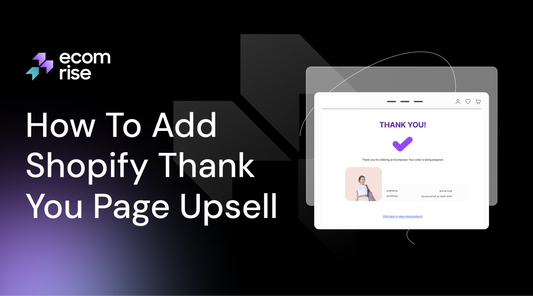
How to Add a Shopify Thank You Page Upsell to Boost AOV After Checkout
Top 6 Shopify Favicon Cart Count Apps to Reduce Abandonment
